BUG ModManager V3.0.0.0 FS25

BUG ModManager V3.0.0.0 FS25
This is not a MOD! It is a program that allows you to manage your mods before launching the game. Keep the program in a different location from the folder where your mods are stored.
Technically, it works as follows:
# Every mod contains a file named modDecs.xml. The game first reads this file and then uses the relevant instructions within it to locate the other files it needs to read. The program works on a similar principle. It first locates the modDecs.xml file inside the mod’s ZIP file. Then it retrieves the necessary information from this file and executes the corresponding functions.
I had to spend money to develop version 3.0.0.0 of the program. If you’d like to support the project, you can make a donation toward its development. The relevant section is available within the program. Thank you in advance to everyone who has shown interest.
IMPORTANT! : I’ve tested everything, but I can’t possibly try every possible scenario. So, if you encounter an error, please share the file causing the error and a screenshot of the error.
NOTE: The program can run on its own, but it still includes a dependency checker. If it prompts you to install .NET 8, you can download it from the official Microsoft website.
V3.0.0.0
1. How to use? section was added, which explains the program in general in terms of features and usage.
2. I added a donation information section. I had to spend money for this version. If you want to support, you can donate to the development of the program.
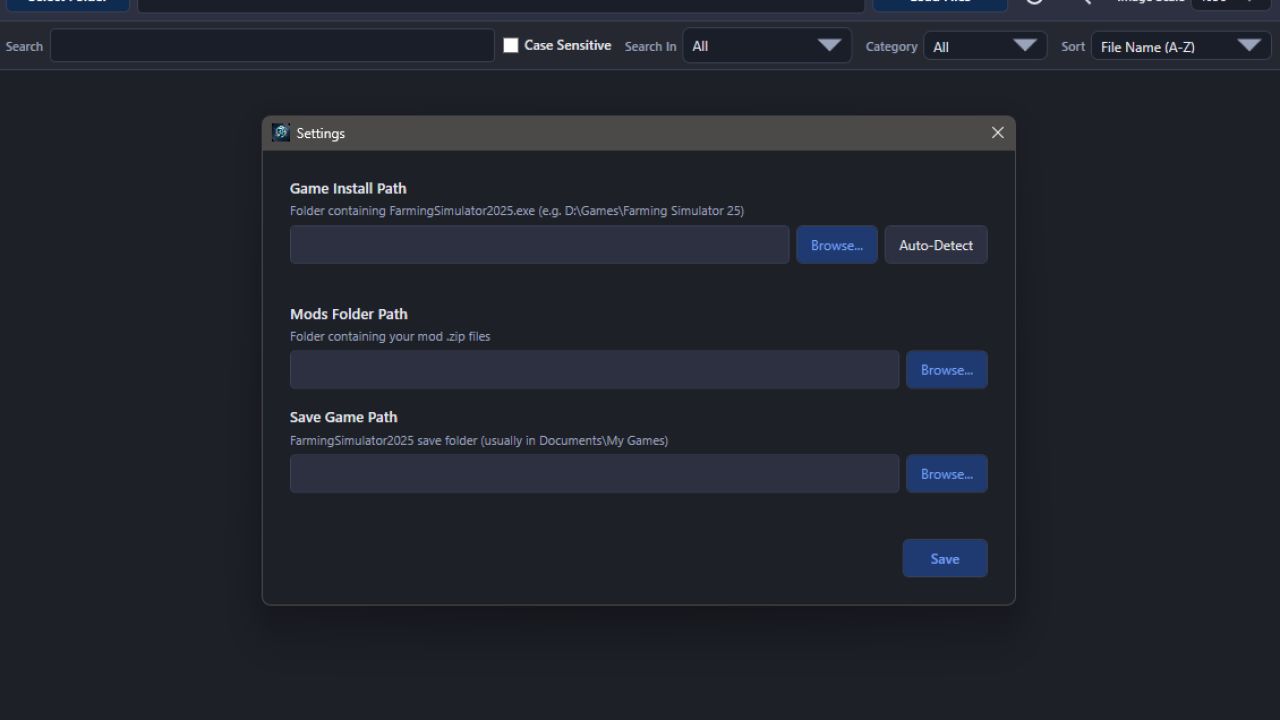
3. The mod folder discovery system at startup was removed. Instead, a section was created where you must enter Game location, save, and mod locations. You must fill this area; otherwise, the window will not close. Also, make sure you select the locations correctly. The entire working structure of the program depends on these locations!
4. 2 new languages added: Russian and German.
5. Theme system added; there are 6 theme options in total.
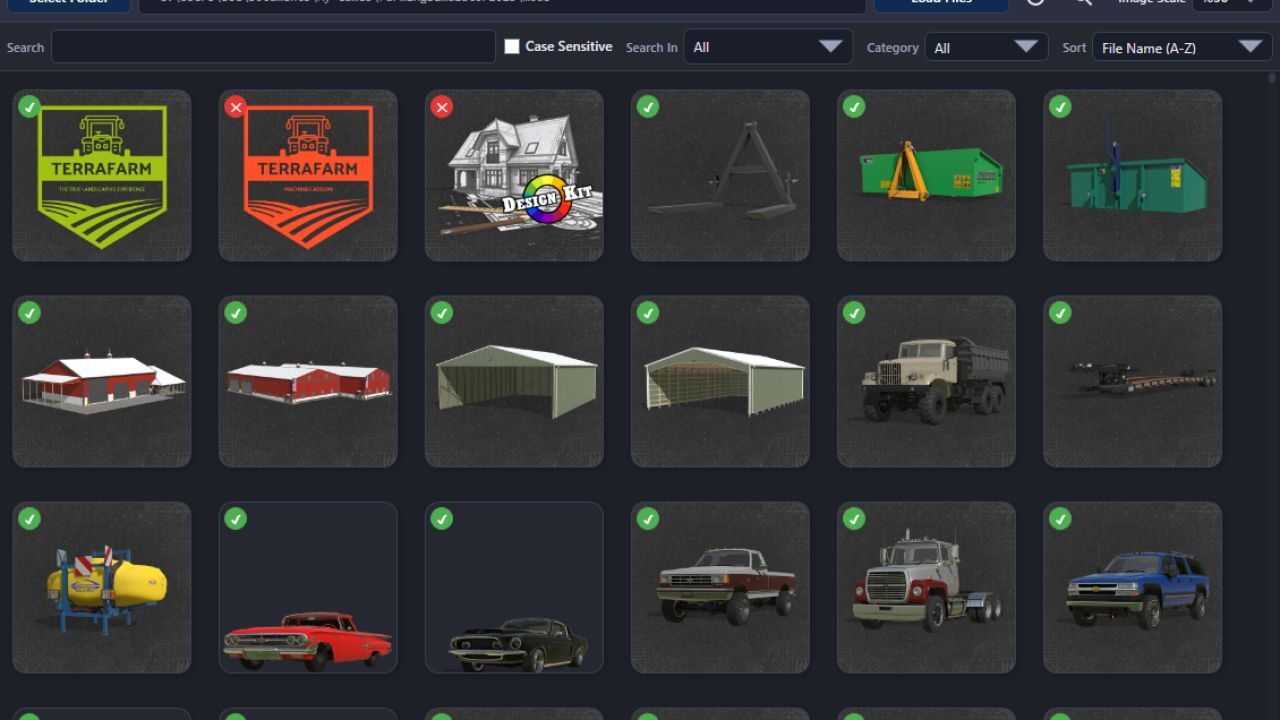
6. The interface has completely changed. Now mods are loaded only visually.
7. Right-click menu added. You can perform some functions from the right-click menu. For example, add/remove mods to a profile or save file, etc.
8. The working structure of the Mod Profiles system has been improved. Also, some interface updates were made.
9. The statistics section was generally overhauled and some arrangements were made.
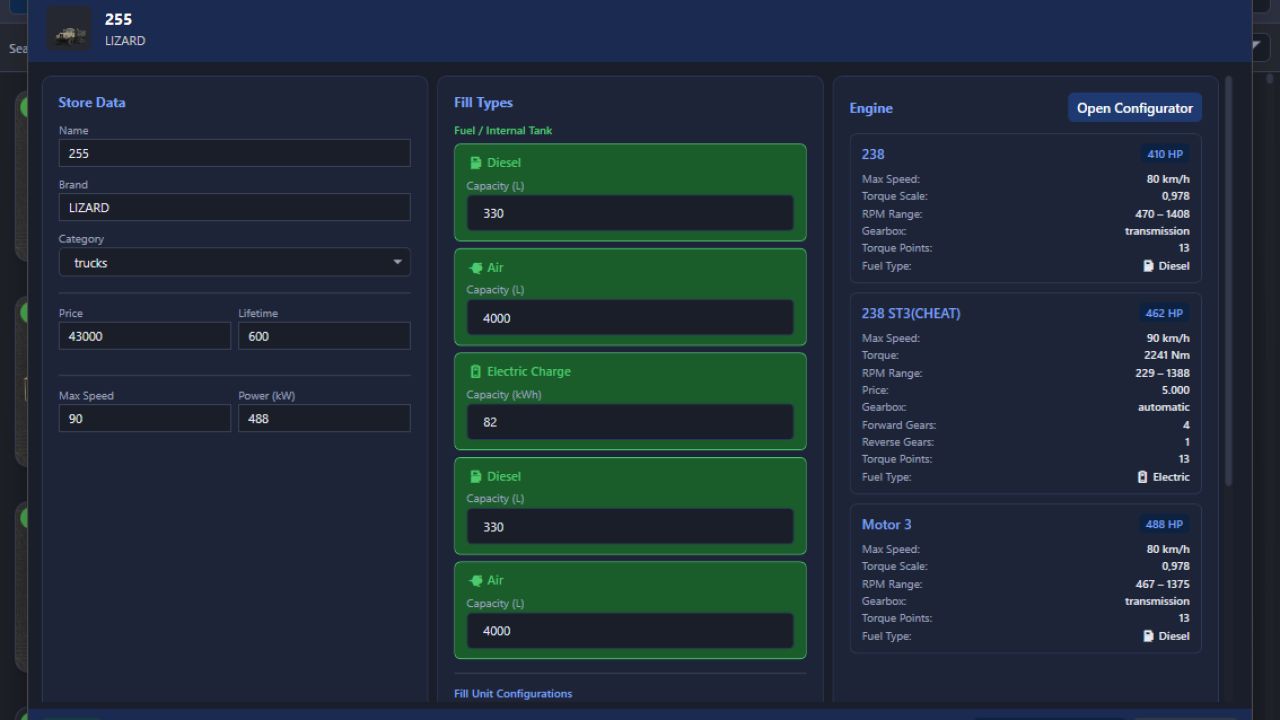
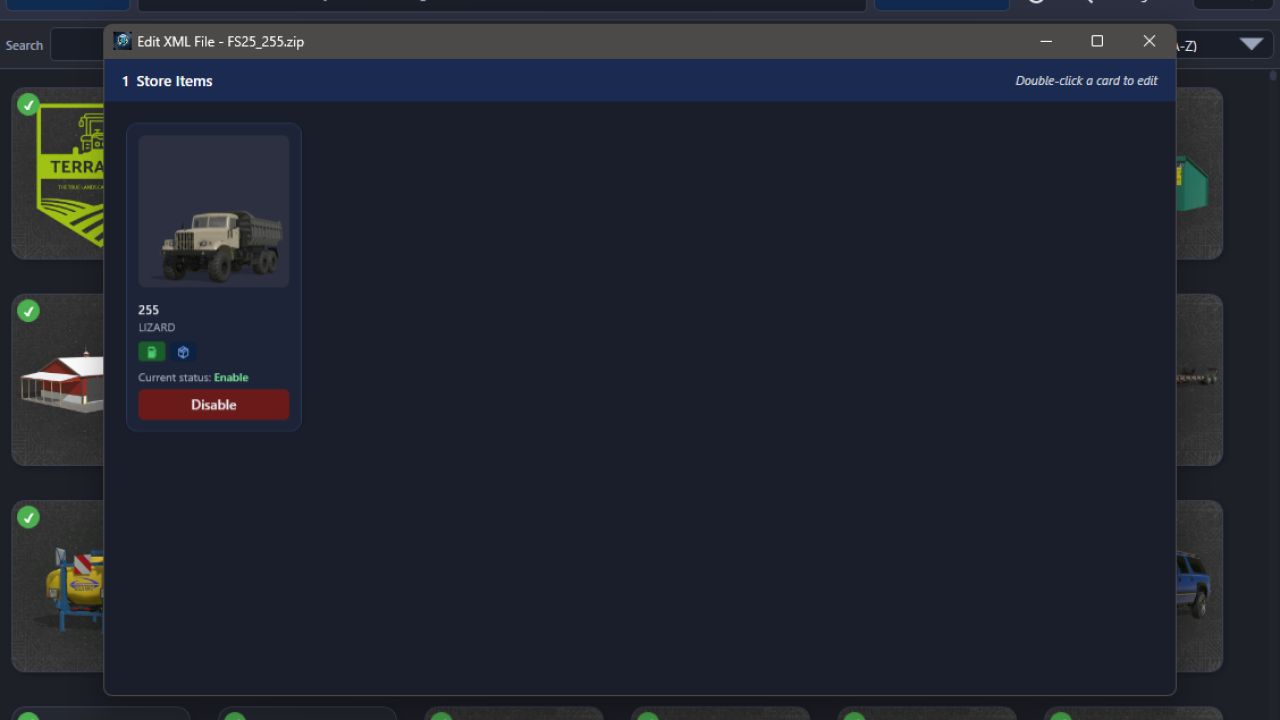
10. The Edit window was reorganized. Now the first window lists the store items content. There is a new interface that opens with a double-click for the detailed edit window. You can always take a backup of all XML content on this screen. In this window, there are 3 separate sections to update StoreData, fillable system adjustments, and Engine data in vehicles if available.
10.1. The Store Data section updates the Name, Brand, Category, Price, Lifetime, Max Speed, and Power information sections and its category in the store.
10.2. The Fill Types section updates the Liter-based Capacity, Fuel, Air, and AdBlue data of vehicles or fillable items in the XML.
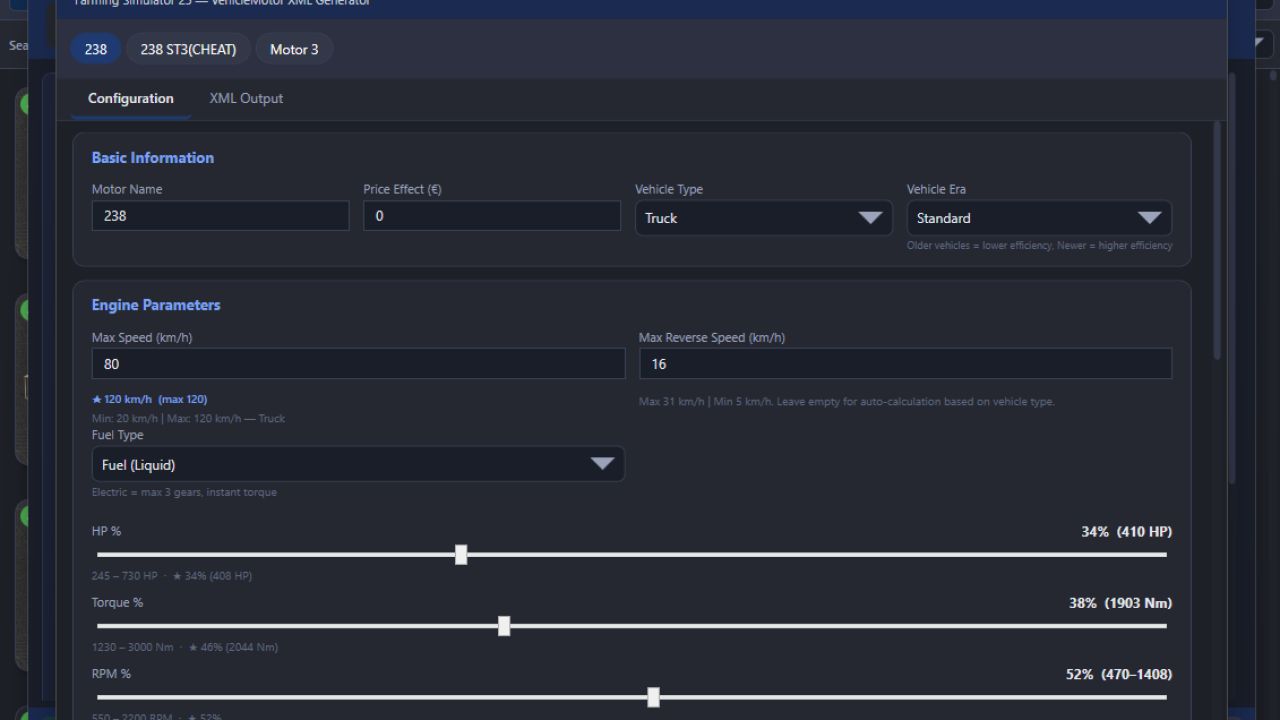
10.3. The Engine section is used to update the engines of moving vehicles and is the most comprehensive part.
10.3.1. When you press the Configuration button, the readable engine data in the vehicle is read first. Engines are listed in the upper area. You can change the following information for the selected engine:
# Engine Name
# Price
# Vehicle Type (Default calculation systems change according to the vehicle type, so take care to select data suitable for the vehicle.)
# Vehicle Generation (Can decrease or increase data by a percentage as very old, standard, and new. Standard selection is the original calculation. The purpose of this data is to produce appropriate engine performance if there is a very old, very new, or fast vehicle.)
# In the Engine parameters area, you can choose whether the vehicle will use Fuel or Electricity. If you select Electric, the Electric motor type data field will open. Additionally, there is a special field for adding electric sound. If the box is checked, separate sound data is created for all engines, and the LUA code file + Sound files are written into the ZIP.
# When driving speed is entered, the calculation system calculates HP, Torque, and RPM for that speed by calculating vehicle weight + towing capacity data and default first tire data in the background. You can adjust other data such as HP, Torque, RPM, Forward/Reverse gear numbers, and vehicle acceleration coefficient using the slider.
# The maximum towing capacity field is calculated automatically. It is based on realistic data but customized to calculate up to 50% more specifically for the game. You can change it; in this case, the engine data will be updated according to that towing capacity.
# The recommended settings button was placed to automatically pull HP, Torque, and RPM data to an ideal point based on other current data.
# All calculated data can be seen in the information section below. There is also an XML preview area.
# You can add additional new engines or delete them.
# You will use the NEC button when your work is finished. Then you need to use the Save button to apply the settings. During the first save process, a backup of the original file is taken; afterwards, you will see a button next to the save button to load the original file.
11. The XML error scanning system was rewritten. It no longer sees everything as an error. Additionally, automatic fix systems were removed; it only provides detailed information. It can be ignored!
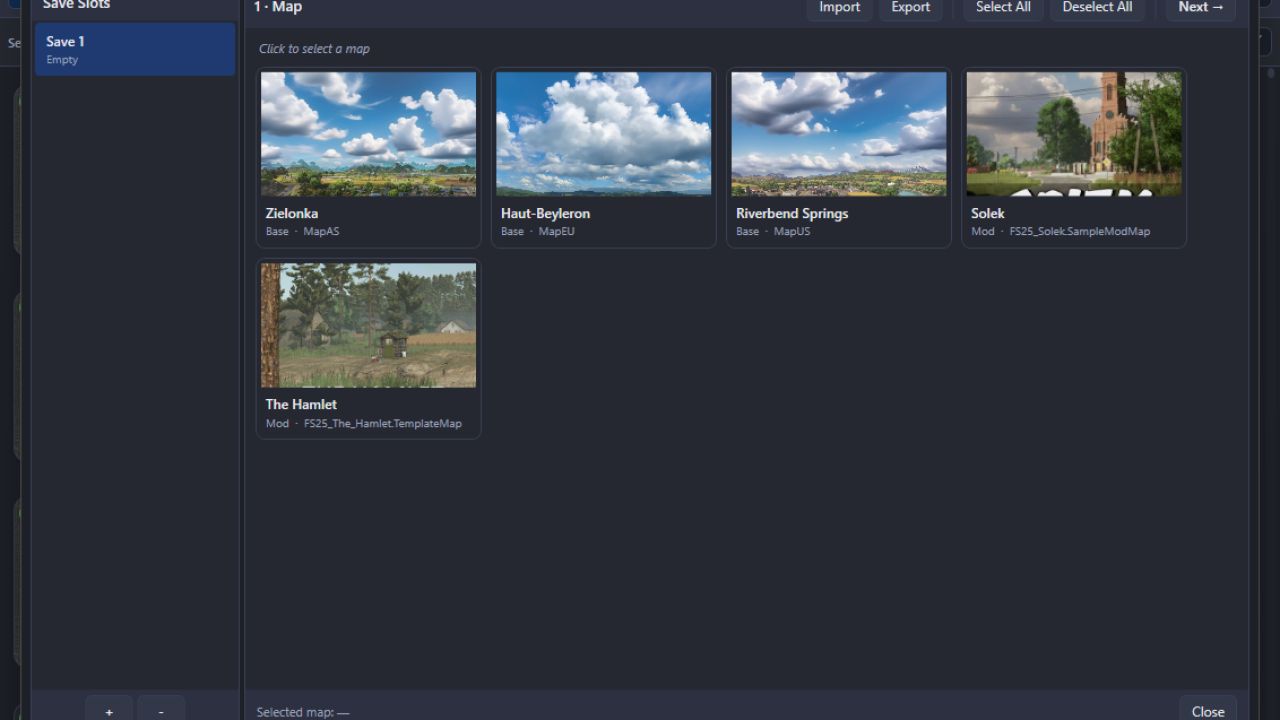
12. The Savegame Manager area was created to create a new save without entering the game. Regardless of whether it’s a game or a mod, you can select your map, make the relevant settings, add mods and DLC additions, and create a new save. I created this area to perform the loading process directly without dealing with any settings by entering the game.
BUG05